All chapters
Write and edit the manuscript
Edit directly on the page, move between chapters, and ask the assistant for changes without losing your place.
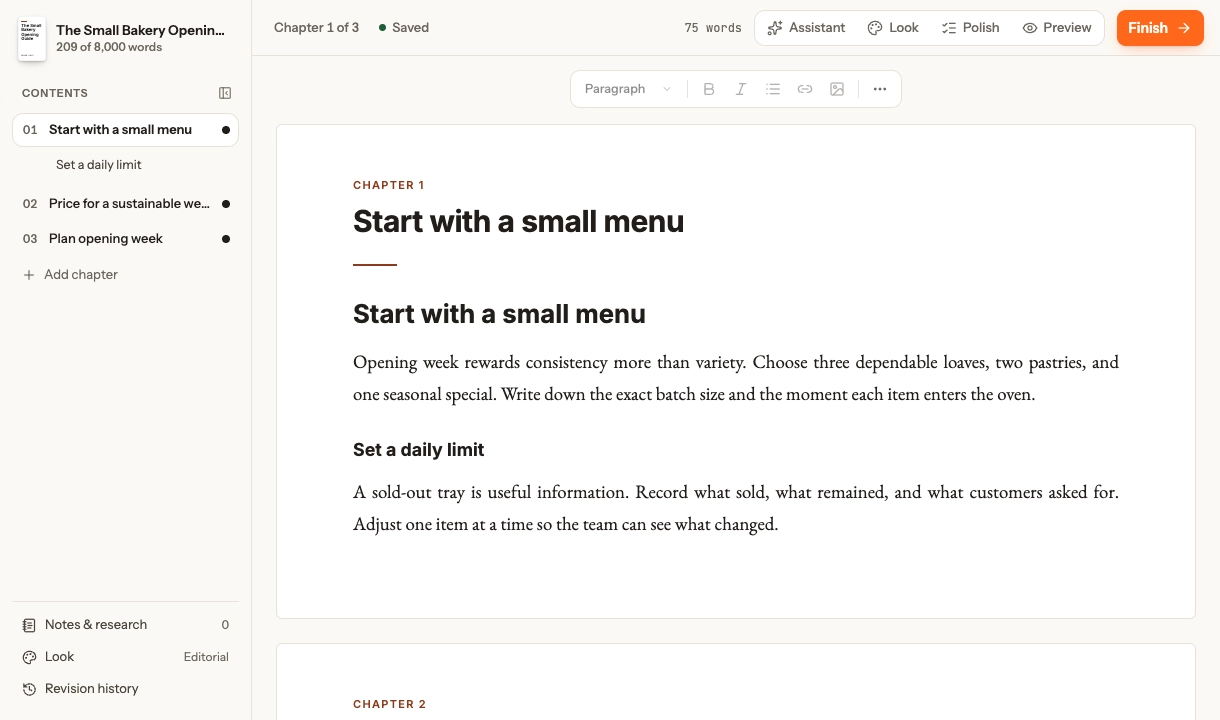
Read the writing workspace
Contents are on the left, the formatted manuscript is in the middle, and Assistant, Look, Polish, or Preview can open on the right. Resize the pane on a wide screen; on a smaller screen it opens as a sheet.
The top bar reports save state and word count. Choose All chapters to read through the book, or open one chapter from Contents or a chapter link.
Edit the words
Click the title or body and type; Chapbook saves the chapter as you work. The editor supports headings and paragraphs, bold, italic, lists, links, images, and the slash menu. More contains tables, a divider, and additional views. The book’s Look—not manual formatting—owns fonts and sizes.
Recover an interrupted save
Unsaved writing is kept in this browser and recovered when you reopen the chapter. If you lose your connection, keep using the same browser; saving retries when you reconnect. If the chapter also changed elsewhere, compare both versions before choosing one. If neither the server nor browser storage can save, Chapbook asks you to keep the page open. Wait for Saved before clearing browser data or moving to another device.
Work with chapters
Select, add, remove, or reorder chapters from Contents. H2 and H3 headings appear beneath a chapter so you can jump within it; folding Contents to ticks leaves a compact progress rail. One-chapter view is useful when the full manuscript feels too long.
In an activity pack each chapter is one page, marked in Contents as a coloring page, a worksheet, or a puzzle. A coloring page’s title is the line printed above its picture. Redraw page in the header gives it a new picture for the price of one picture; one that doesn’t come out as clean black-and-white line art is not saved or charged. Redrawing needs a paid plan. On a puzzle page, New puzzle lays the same words out again, free on every plan; the page’s words are listed under it in the outline, and the drawn puzzle shows in the PDF preview.
Ask for a passage change
Select text for Shorter, Expand, Rewrite, or a specific instruction. The answer arrives as suggestions rather than silently replacing your words.
Use Assistant, Look, Polish, and Preview
Open only the side tool you need; your conversation and selection survive moving around the book. Polish is a whole-book read-through that points to exact places. Preview renders a PDF; if the manuscript changes afterwards it shows Changed since this preview until you render again.
Focus and finish
Focus mode leaves only the page. Finish opens Launch elsewhere when you are ready for checks and files.
Next: review suggestions or choose the look.