All chapters
Publish a book page on Chapbook
Give the book a public page, collect reader sign-ups, and decide exactly what appears there.
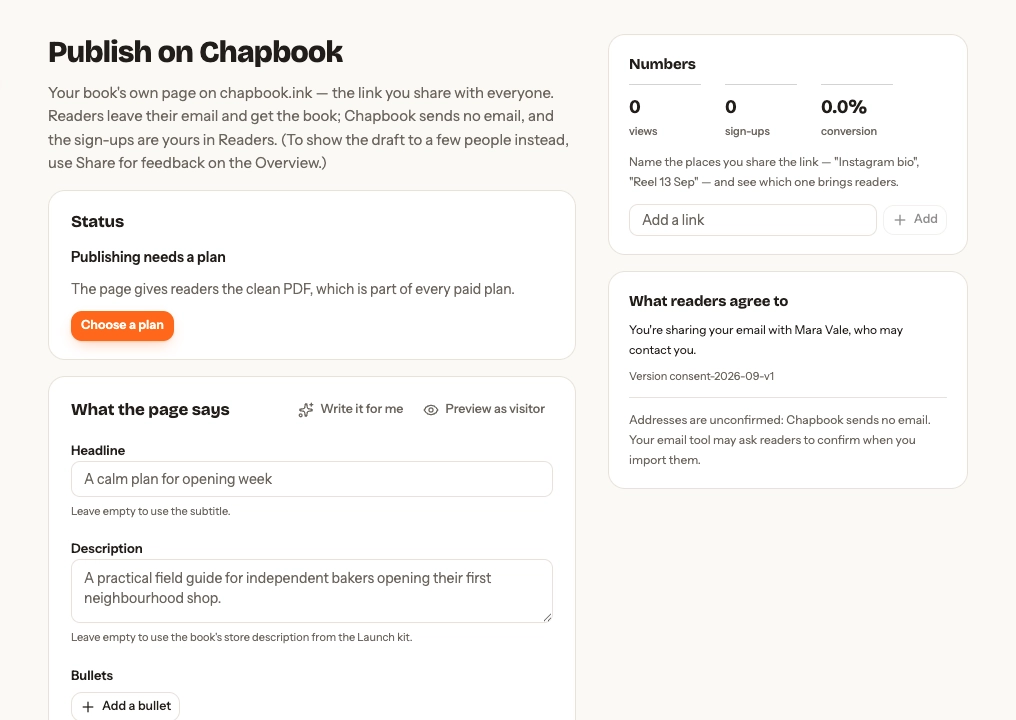
Before you publish
A public page needs a handle, written content, and a paid plan (or that book’s Book Pass) for the clean PDF readers receive. If one is missing, the status card says Choose your handle first, Write or draft a chapter first, or Publishing needs a plan.
Write what the page says
Set the headline, description, bullets, contents, author block, and optional next-step link. Write it for me drafts copy but does not save it. Review the result, choose Save, then Preview as visitor.
The next-step link appears after sign-up. It can point elsewhere, but Chapbook does not process payments. Leave it empty and the page uses your book’s own next step, tagged utm_medium=book_page.
Set the address and visibility
Choose the slug, decide whether search engines may index the page, and hide the Chapbook badge only when your plan allows it. Indexing is off by default. Changing a live handle or slug breaks old links.
Publish, update, or unpublish
Publish takes a snapshot of the book; later manuscript edits stay private until you choose Update page. Chapbook first builds the clean PDF for that same revision. A live status shows when it went live and provides Copy and Open actions.
If a plan lapses, the last published snapshot stays available but updating it needs a plan. Unpublish takes the page offline. If Chapbook has taken a page down, follow the support message shown in the app.
Share it elsewhere
While the page is live, Share it elsewhere gives three more ways in:
- Link in bio: one address,
/@your-handle, that lists every live page of yours under your pen name. Your bio and photo appear there only while one of those pages shows the author block. Put it in an Instagram, TikTok or newsletter bio. - On your website: a short
<iframe>code. Paste it into your site’s HTML and readers see the cover, the title and the same sign-up form without leaving your site. Read now and Download PDF open in a new tab, and each sign-up lands in Readers like any other. The card can’t remember a reader on your site the next time they visit, so after signing up it shows their personal link to keep. - QR code: choose Make a QR code, then download it as PNG or SVG for print, slides and talks. Scans open the page through a named link called QR code, so they show under Numbers. Deleting that link removes its numbers; printed codes still open the page.
Measure links
Create a named link for each place you share and compare views, sign-ups, and conversion. Deleting a named link also deletes the numbers attributed to it.
Every Monday afternoon (14:00 UTC) Chapbook emails you each live page’s views, sign-ups, and top named link for the past week. A week with no visits sends nothing. Turn the digest off from its own footer link or on your Author profile.
What a reader agrees to
Under the form, readers see “You’ll get emails from {your pen name}. Unsubscribe anytime.” It is in the book’s language, like the rest of the page and its embed card. That exact line, its version and the time are stored with each sign-up. The privacy notice it links to is in English. Chapbook sends no reader email; addresses are unconfirmed and appear in your Readers list, and go on to Kit, Mailchimp, Beehiiv, MailerLite or your webhook if you connect one there.
On an activity pack for children, the form is for a parent, guardian or teacher, never the child. It says so above the fields, asks for the grown-up’s own email and name, and has a box they must tick: “I’m a parent, guardian or teacher, aged 18 or over, signing up for myself.” That sentence, in the book’s language like the rest of the form, is stored with the consent line. A pack whose age was never set is treated as a child’s.