All chapters
Review suggestions and restore revisions
Every assistant edit waits for your decision, and earlier chapter versions remain available.
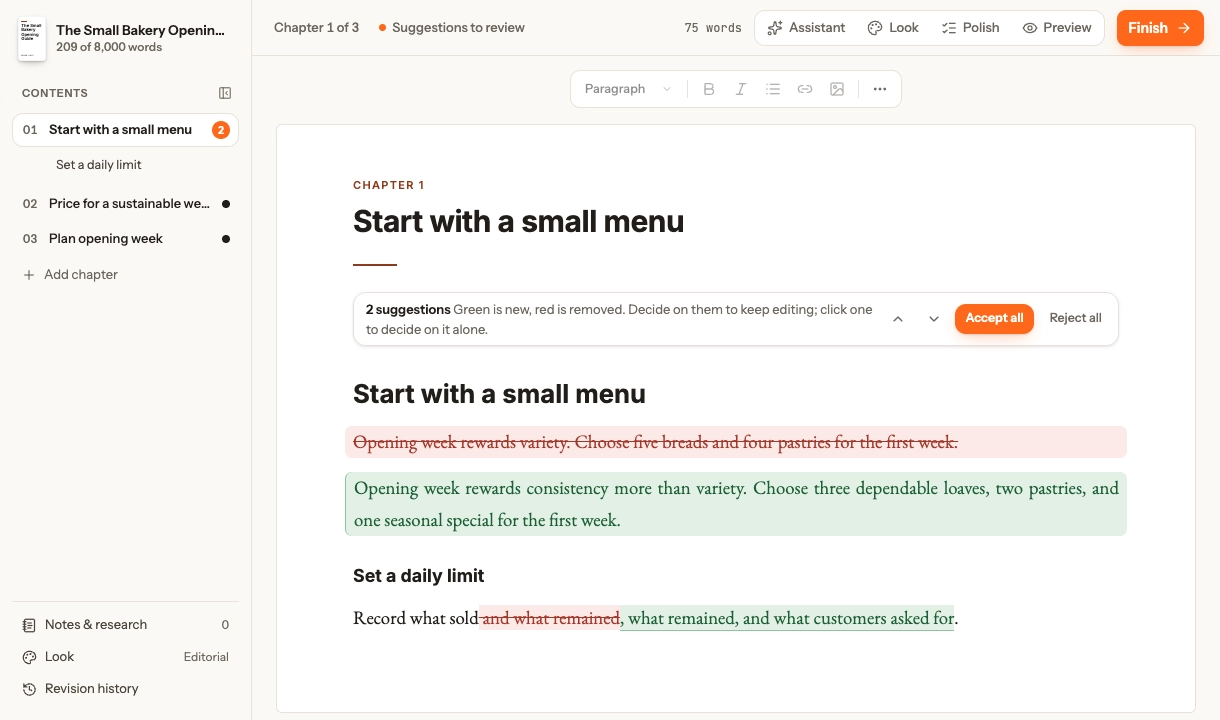
Recognize a suggested edit
Inserted and removed text stays marked until you accept or reject it. The chapter shows Suggestions to review, Contents shows a count, and the assistant pane offers a review card. Ordinary editing is read-only while those changes are unresolved.
Colour reinforces the difference between inserted and removed text, but the review controls and accessible labels carry the same meaning.
Decide one change at a time
Use Previous and Next to move through changes, then Accept or Reject the selected suggestion. This is useful when an edit fixes one sentence but changes another you want to keep.
Decide the whole chapter
Accept all keeps the assistant’s version; Reject all returns to the version the edit started from. Resolving the final suggestion lets the chapter save normally again.
Restore an earlier revision
Revision history saves the current chapter first, so restoring an older version does not destroy the one you have. Open Revision history from the Contents footer or More, choose a version, select Restore, and confirm.
Each revision says what made it: Manual edit for your own saves, AI for the assistant’s changes, Pasted when you paste or drop a paragraph or more into the chapter, and Restore. Chapbook keeps the latest 50 revisions of each chapter, and reads them to show how much of the book you wrote by hand.
Resolve a conflict
This chapter changed elsewhere means another saved revision won the race. Compare My version with Saved version in the dialog. Keep my version saves your changes; Use the saved version discards the unsaved draft. Copy passages you want from either version before choosing. Chapbook does not automatically merge competing edits.