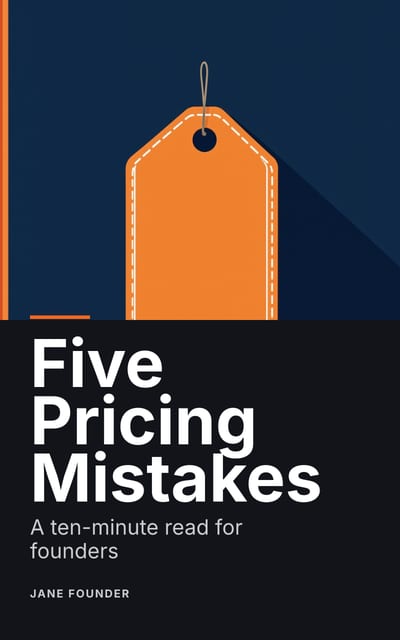
How to turn your book into a LinkedIn carousel
Take one chapter, not the whole book. Write a hook, one point per slide and a takeaway, end on the book’s name and where to get it, and save it as a PDF. Upload that to LinkedIn as a document post, which is how a slide deck appears there. LinkedIn allowed documents up to 100 MB and 300 pages when we checked on 30 October 2026.
Why one chapter, not the whole book
A carousel isn’t a summary of your book. It is one useful idea, given away complete, with a pointer to where the rest lives. A summary of ten chapters says too little about each to be useful. One chapter’s worth of steps can be used by the reader on the same day, and that is what makes them want the book.
Choose a chapter by what it would do for someone who never reads the rest. If it needs the earlier chapters to make sense, pick another.
How a chapter becomes slides
| Slide | What goes on it | Where it comes from in the chapter |
|---|---|---|
| Opening | The hook, large, with the book’s title small | The problem the chapter opens with |
| Points | A number, a short heading and a line or two | The section headings, or the steps of a list |
| Closing | The takeaway, then the book and where to get it | The chapter’s last paragraph |
Rewrite as you go. Book sentences are built to be read in a row; a slide’s sentence has to stand alone. Cut the examples unless one of them is the point, and let the chapter keep the detail. That is what the reader comes to the book for.
Details that are easy to miss
LinkedIn calls it a document. Its help pages describe “documents” in posts, not carousels, so that is the word to look for. The steps start with Start a post, and Add a document sits under the More menu.
Put the address on the slide as text. Some readers will see the slide as a picture or a screenshot. Spell the address out on the closing slide and repeat it in the post, so it works wherever the slide ends up.
Write the post as if nobody opens the slides. The lines above the document are the first thing people read. Say what the slides give them and who they are for.
Make more than one. A book has several chapters that can do this, each aimed at a different problem. Spacing them out gives you something to post from one piece of work. Nothing here promises reach or readers, so watch what your own audience responds to.
How to make one by hand
Any tool that exports a PDF will do. Set a custom page of 1,080 × 1,350 pixels, use your book’s fonts and colors, and set body text larger than feels natural, since it will be read on a phone. Put the slide number on each one so people know how far they have to go. Save as PDF, check the file opens with your fonts in place, and upload.
Where Chapbook fits
On a paid plan, the Campaign tab on a book’s Launch page writes this for you. It reads each chapter and makes a carousel of 6 to 10 slides, for up to the first 12 chapters with words, set in your book’s fonts and colors at 1,080 × 1,350: the chapter’s hook, each key point numbered in the book’s accent color, then the takeaway, the book’s title and a button. The tab shows the credit price before it runs.
Each carousel downloads as a PDF for a LinkedIn document post or as PNGs for Instagram. If the book’s page is published when the campaign is written, the closing slide’s button opens it through a named link called “Carousels”, so those readers show up separately in the page’s numbers. If not, it opens the book’s Next step link, and with neither there is no button.
The same campaign writes a 5-email welcome sequence and 10 social posts. Chapbook sends and posts none of it. A carousel is drawn in the look it was written in, so write the campaign again if you change the look.
We don’t have a sample carousel to show yet. The outline on this page is from a real sample lead magnet: each of its chapters is the raw material for one carousel.
What to do
-
Pick a chapter with a shape
The best ones already have a list, a sequence or a clear before and after. A chapter that argues one idea over many pages is harder to cut into slides.
-
Write the hook slide
The first slide decides whether anyone swipes. State the problem or the surprising claim in one line, in the reader’s words. Leave the book’s name small.
-
Give each point its own slide
One point, a short heading and a sentence or two on what it means. If a slide needs a paragraph, split it or drop it.
-
Close on a takeaway and the book
The last slide holds the one thing to remember, then the book’s title and where to get it. Print the address as text, so it works even as a picture.
-
Save it as a PDF and post it
On LinkedIn, start a post, choose More, then Add a document, and upload the PDF. Write a few lines above it that make sense without opening the slides.
-
Check it on a phone
Open the post on your phone before you share it further. If you have to pinch to read a slide, the type is too small.